
Product
A ceramic coffee cup on a pale stone table, soft morning window light, product photography.
Change the product, surface, or light.
Use the product starterDescribe a portrait, a product scene, a character, or a place you’ve imagined. Generate a first image, then change the mood, explore a variation, or take it in a new direction.
Create your imageOpens in Red Panda AI Studio.
Help me write a promptAI-generated examples of creative directions. Your results will vary.
What are you making?
A campaign concept needs a different description from a story character. Find a task close to yours, see which details guide the image, and change the example to fit your idea.
Product visuals
Try a product hero, a seasonal campaign, or a different setting before committing to props and photography.
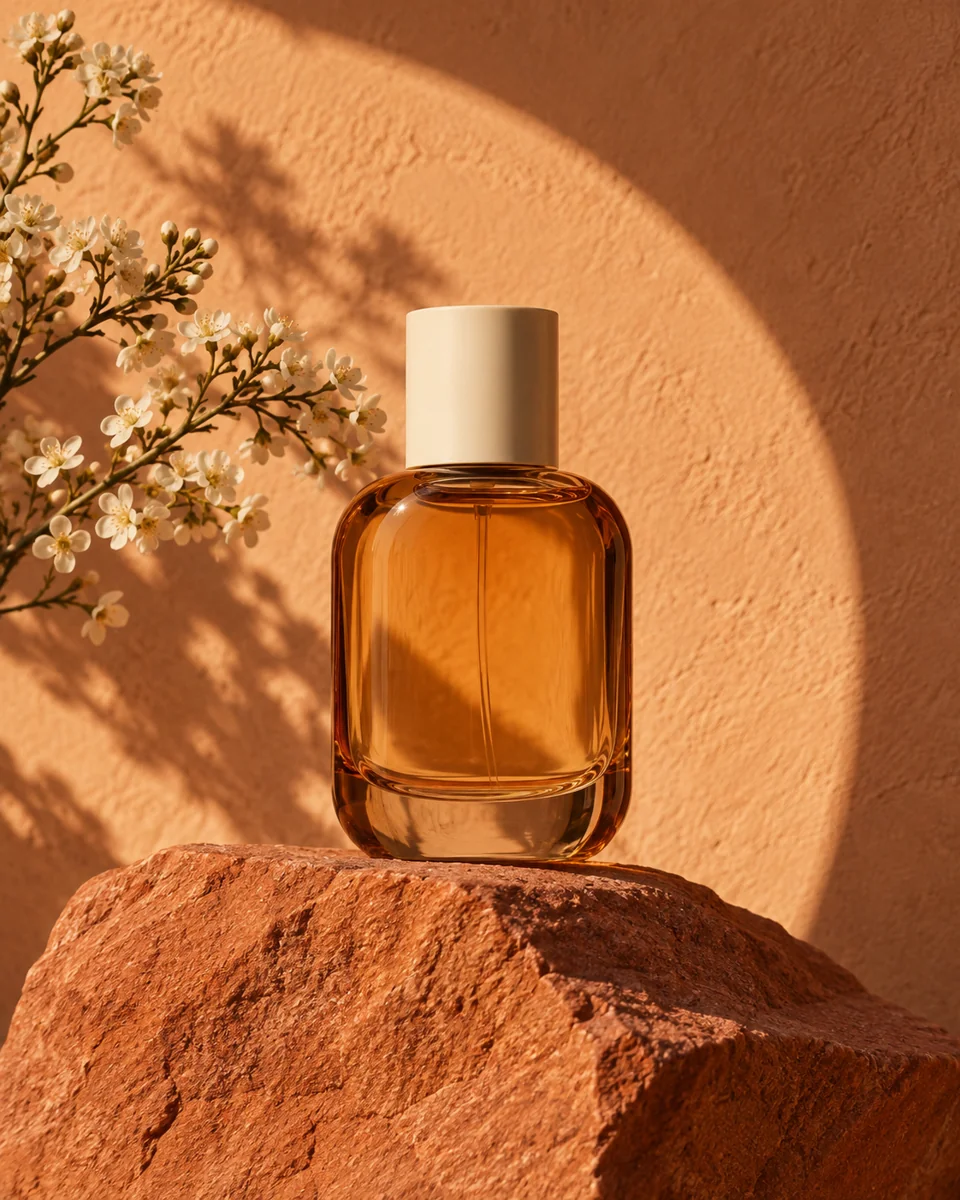
Name the product, the surface it sits on, and the light. Here, amber glass, sandstone, and afternoon sun give the scene a warm, tactile direction. You do not need to describe every pixel.
An amber perfume bottle with a cream cap on a sandstone plinth, apricot plaster wall, a circular sunlit shadow and a branch of white blossoms. Minimal editorial product photography, late afternoon light.
Make it yours. Swap the bottle for your product, try a cooler surface, or change afternoon sun to soft window light.
Start a product imageAlready have a product photo? Transform an existing image →
Character concepts
Explore a character’s outfit, expression, and pose for a story, game concept, or illustrated world.
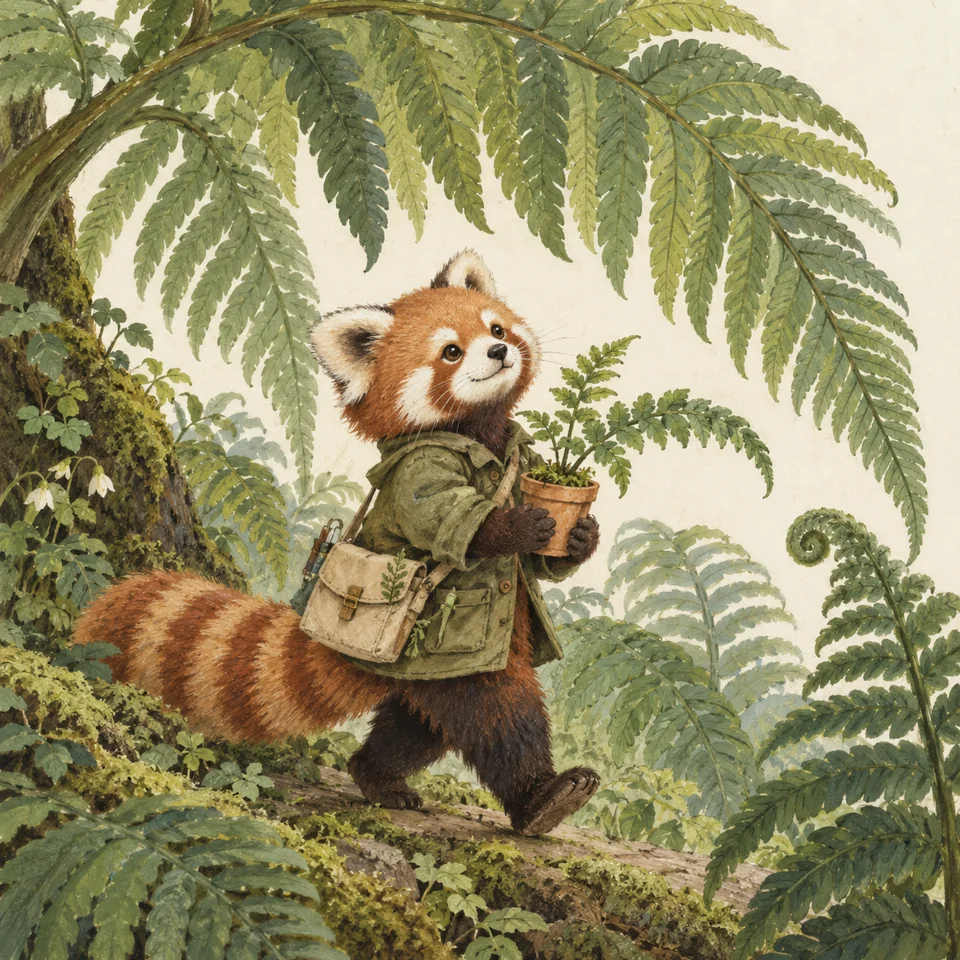
A botanist carrying a pot has a role and an action. A moss-green jacket and gouache texture add personality without a long character biography.
A red panda botanist in a moss-green jacket carrying a tiny terracotta pot through enormous ferns. Full body, expressive face, gouache illustration, pencil edges, warm forest palette.
Make it yours. Keep the personality and change the outfit, expression, or setting. Describe the details you want to remain recognizable as you explore.
Start a character concept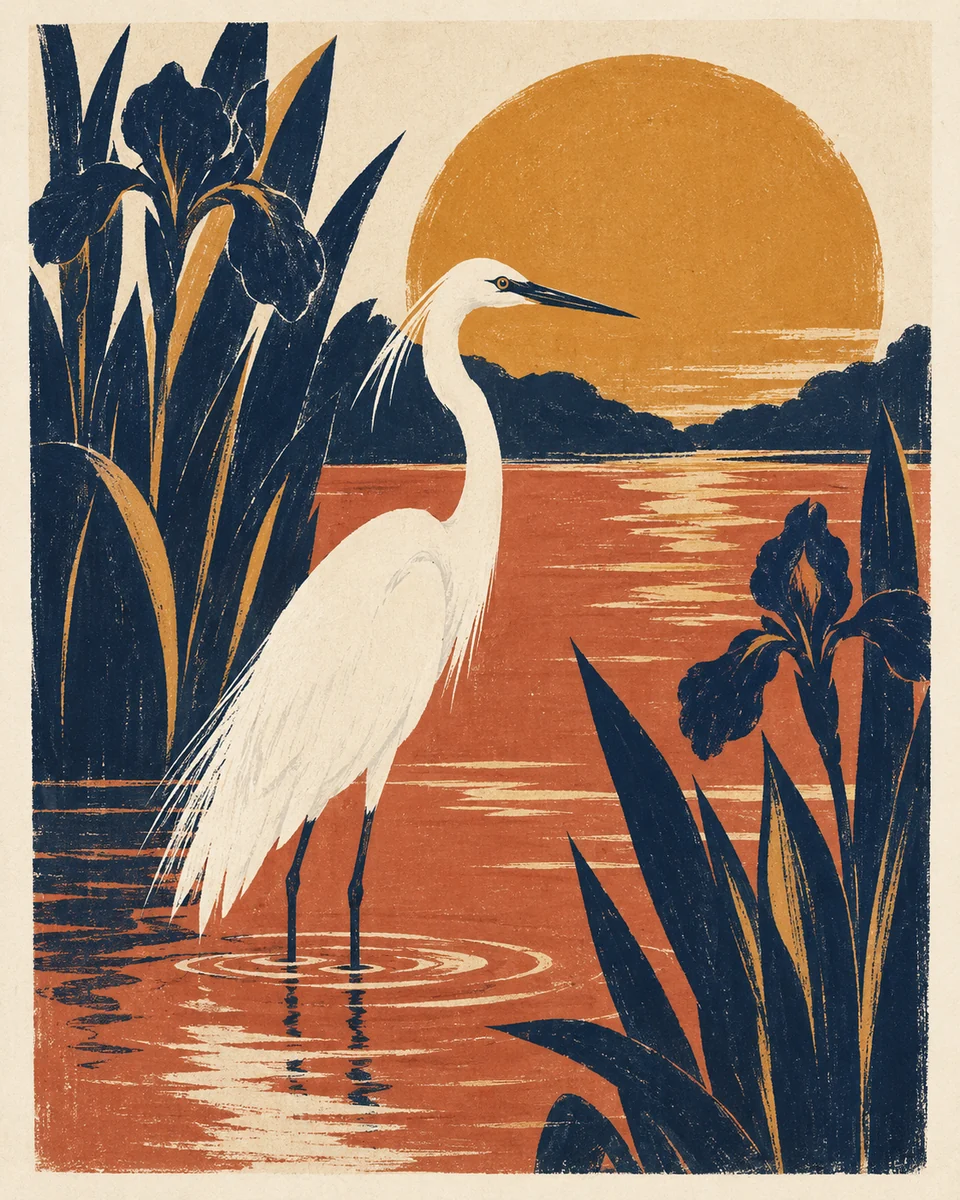
Posters & graphic visuals
Develop an illustration for a poster, cover, or art print before adding final typography and layout.
One clear silhouette and a limited palette make the bird readable at a glance. Naming gouache and screen-print grain gives the image a specific treatment.
A white egret standing in a terracotta pond among oversized navy iris leaves, an ochre setting sun. Flat gouache shapes, dry brush edges and screen-print grain on cream paper. Graphic art print, no lettering.
Make it yours. Change the bird, palette, or shapes. Keep this step focused on the artwork; add final lettering and layout separately.
Start a graphic image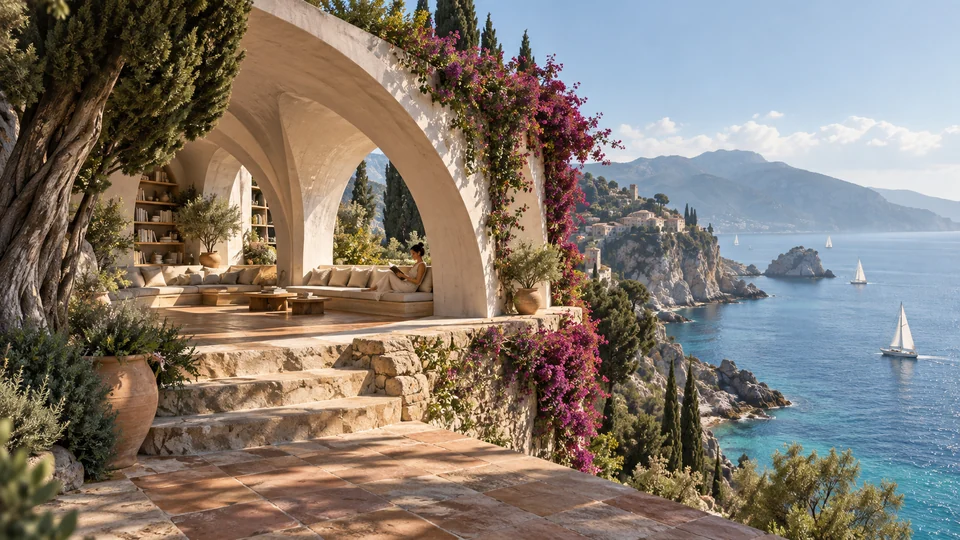
Places & environments
Explore an architectural concept, an interior atmosphere, a film setting, or a fictional place.
Concrete arches describe the structure; a cliff and quiet sea establish the setting. Noon sunlight tells the image how those materials should feel. This is a visual concept, not a construction drawing.
A reading pavilion built into a Mediterranean cliff, sweeping cream concrete arches, wooden benches, trailing bougainvillea and a quiet turquoise sea. Wide architectural photograph, warm noon sunlight, tactile stone.
Make it yours. Move the pavilion to a forest, change the material to timber, or try evening light. Change one direction at a time so you can see what it adds.
Start an imagined placeHow to write your first prompt
Begin with one thing you can picture. You can add a setting, an action, a visual treatment, or light—but you don’t need all of them. This lunar flower shop shows how a short idea can become a more specific image.
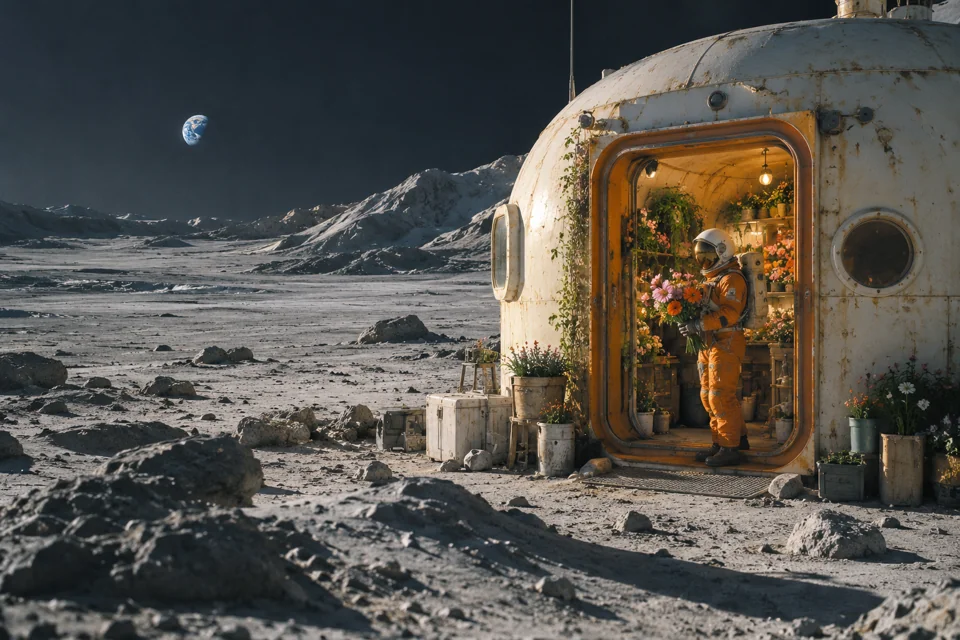
The flower shop supplies the subject; the moon supplies the setting. The astronaut adds an action. Photography and morning light describe the look, rather than adding more objects.
A tiny flower shop on the moon, an astronaut carrying pink cosmos and orange poppies, a cream lunar habitat, Earth above the horizon. Cinematic photography, warm morning light, textured lunar dust.Use this prompt
Use one sentence as a starting point. Change the part you can already imagine; add more after you see a result.
Walk through your first image →Prefer to choose an image and make your own version? Browse Templates →
A ceramic coffee cup on a pale stone table, soft morning window light, product photography.
Change the product, surface, or light.
Use the product starterA fox courier in a yellow raincoat carrying a parcel through a rainy city, ink and watercolor illustration.
Change the character, outfit, or action.
Use the character starterA small reading cabin beside a forest lake, warm light in the windows at dusk, cinematic photography.
Change the place, time of day, or medium.
Use the place starterUse a Style when you know how the image should look, even if the subject stays the same. It is optional: you can leave Style unselected and describe a medium or treatment in your prompt instead.
Browse the available Styles →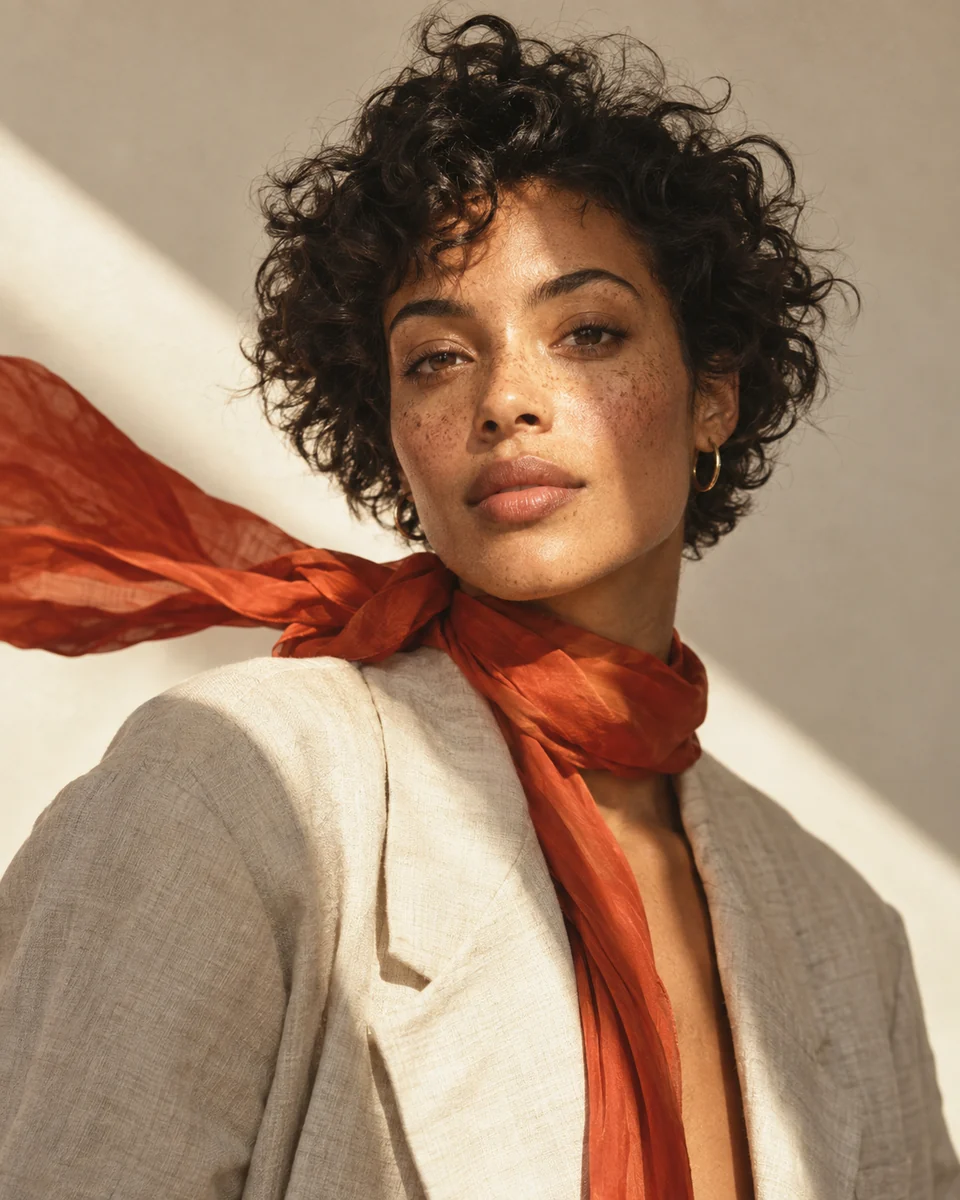
For portraits, product scenes, and editorial work where realistic light, physical materials, and depth matter.
Try: “film photography, warm sunlight, natural texture.”
For characters and stories where expressive shapes and hand-drawn texture matter more than literal realism.
Try: “gouache illustration, pencil edges, expressive face.”
For poster artwork and covers built around a strong silhouette, a limited palette, and a clear composition.
Try: “flat shapes, limited palette, screen-print grain.”
These examples show visual treatments you can describe. Browse Styles for the choices currently available in the generator.
Choose the shape for its intended use before generating. A wider canvas gives a scene room to spread; a taller one gives a person or a poster more height. These are composed examples, not just crops of one image.
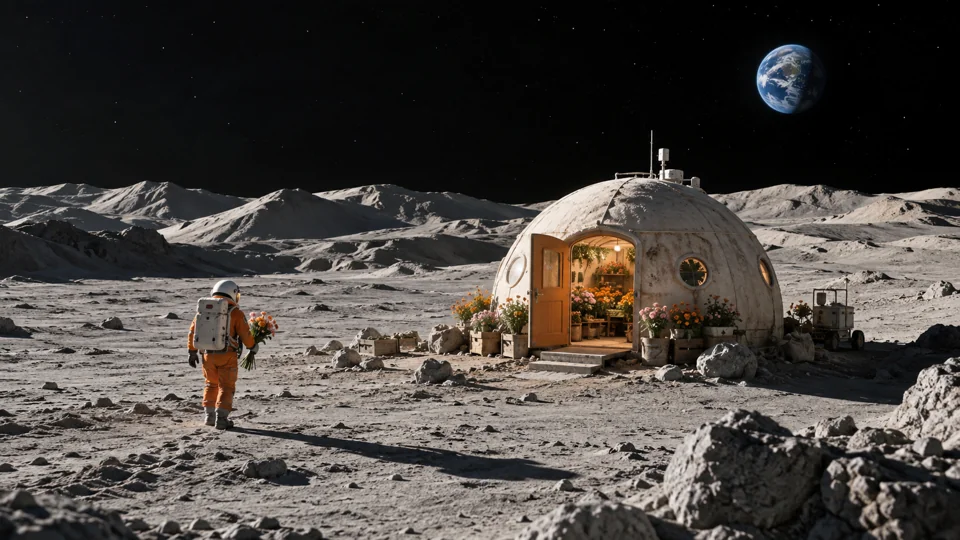
For scenes, architecture, environments, and banners. Describe what should fill the space around the subject.
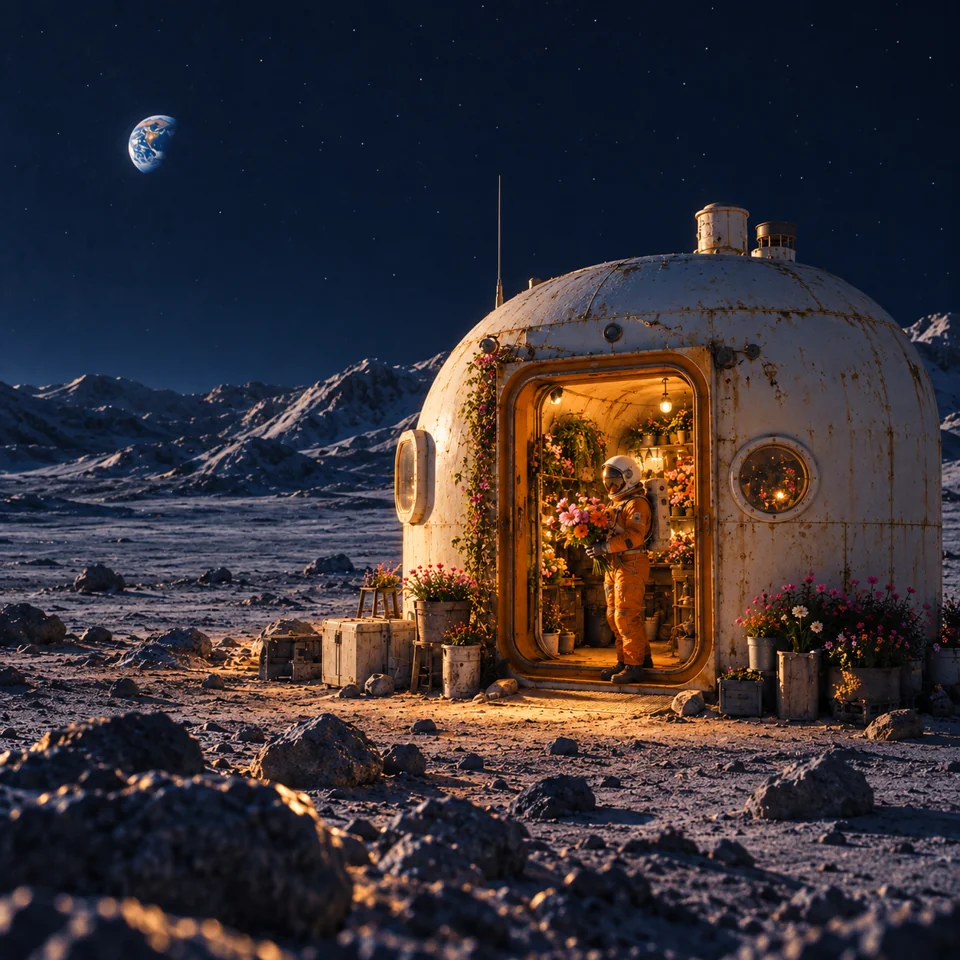
For feed posts, profiles, and compact product compositions with one clear focus.
For editorial portraits, characters, posters, and vertical campaign artwork.
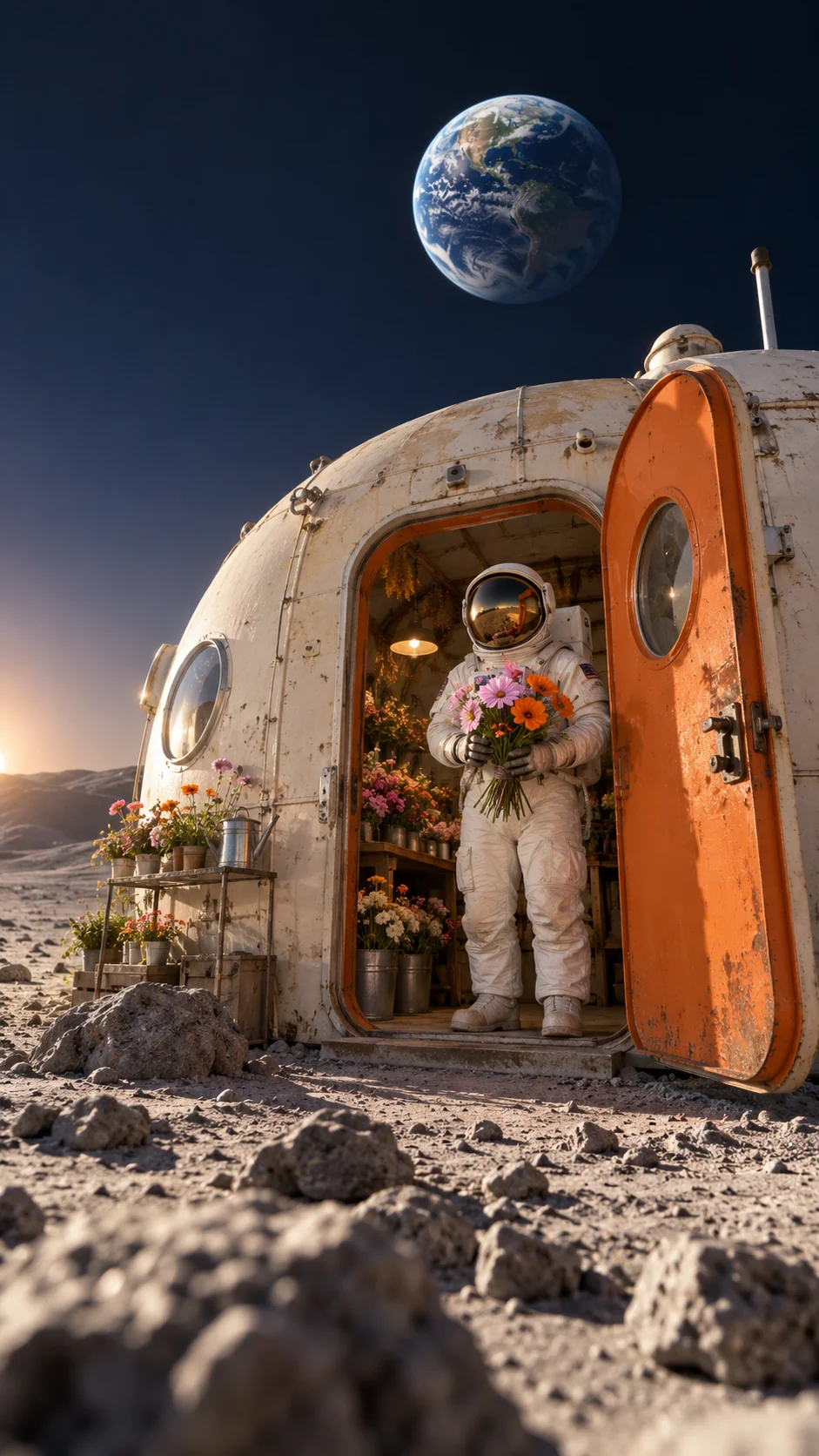
For phone-first content, full-body characters, and tall scenes. Leave room above and below what matters.
When words are not enough
Add a reference when a picture can explain something more clearly than another sentence. Tell the generator which part interests you, then describe what you want to change.
A subject. Show the person or object you want to keep exploring.
A composition. Show where the subject sits and how the space is arranged.
A visual direction. Show a palette, a material, or an atmosphere to build on.
“Keep the little shop and astronaut. Build their world out of layered paper.”
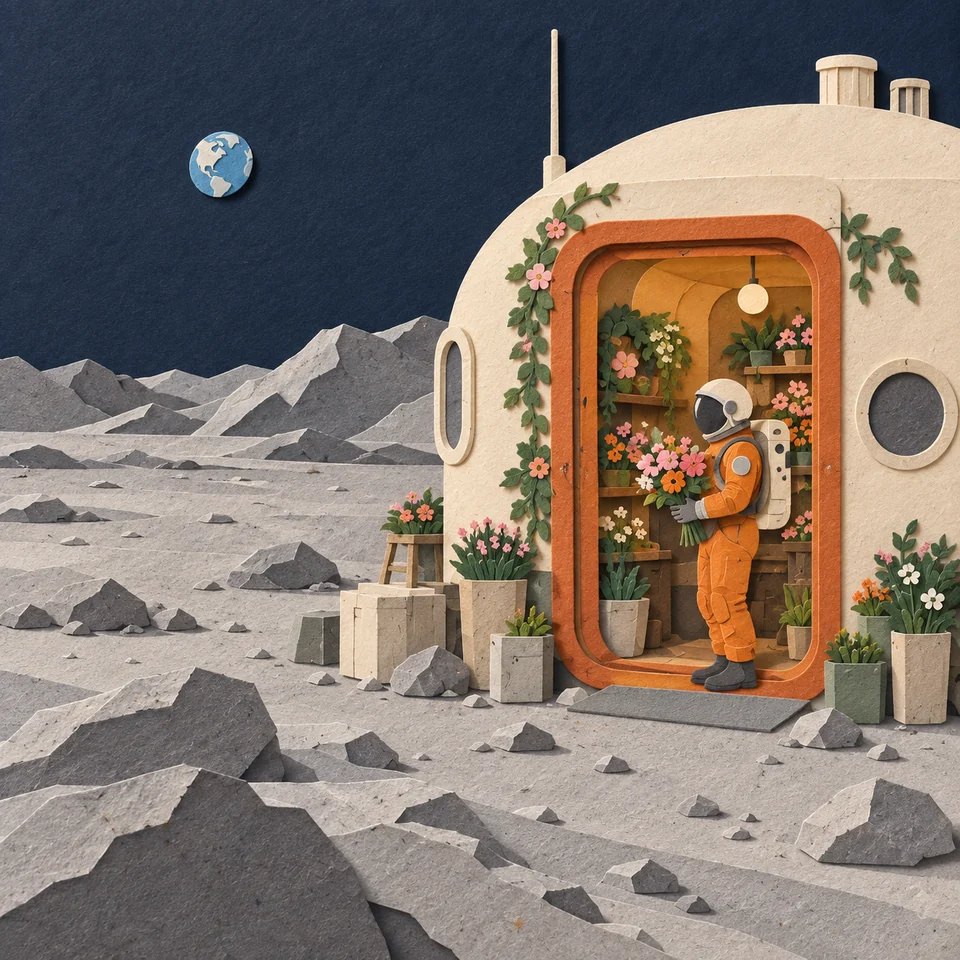
Add your image after opening the generator. Check supported files and sizes →
A reference guides a new image, rather than an exact copy. If your goal is to change one existing photo, Transform an existing image →
If the first image is not quite right
You may like the subject but want another composition, a different mood, or a new material. Your first result stays available while you explore another direction. You do not have to start the idea from scratch.
Notice what you want to keep: the subject, the setting, or the composition. For a new idea, download a copy, size it for a reference, and add it to another prompt.
When the idea is close, open Transform this image and choose Make variants. Explore another take while keeping the main subject recognizable.
Describe a bigger change, such as “make it a paper diorama.” Say which parts should stay recognizable. Generative changes can also change fine details.
Prompts, references, and what happens after you generate.
No. Start with a plain sentence about the image you want: “A ceramic cup on a stone table in morning light.” Add the setting, action, or medium only when it matters to your idea. You can use a starter or an example from this page, edit it in the generator, and refine the direction after seeing your first result.
You can explore product visuals, editorial portraits, characters, illustrations, graphic artwork, architecture, and imagined scenes. Describe both the subject and the kind of image it should be. These AI-generated examples show creative directions, not guaranteed replicas. For a poster or campaign, use the image as a visual starting point and finish precise lettering or layout separately.
Change the part that missed your intention. Rewrite the main sentence if the subject is wrong; change the light or Style if the mood is off; choose a wider frame if the scene feels cramped. If part of the result is useful, open Transform this image and describe what to keep and what to change. You can also explore a nearby variant or add a reference to a new prompt. Each result is a new image, so fine details can change.
Yes. Add an image as a reference when it can help show a subject, composition, palette, or atmosphere. A reference guides a new image; it is not an exact copy. If you want to change a particular existing photo, start with Image-to-Image instead. The image upload guide explains supported files and size limits before you begin.
You can generate without an account within the current guest Credit allowance. Guest results stay in this browser. Sign in before generating when you want new work saved to your account and available on other devices. Signing in does not automatically move images from browser history into your account.
Signed-in results are saved as Creations. You can reopen them, review the image, and continue into a new result while keeping the original. Guest images are saved only in this browser and can be lost when browser data is cleared. Download anything you want to keep; for future work across devices, sign in before generating.
Yes. Choose Download from the finished result or its saved Creation. The file keeps the image’s current format. You can download a result when it is ready to use, or keep exploring another direction first. Downloading does not require generating another image.
One sentence is enough to begin. Pick a subject, create a first result, and decide what you want to take further.
Opens in Studio. You can start without an account within the guest allowance.