
AI image Style
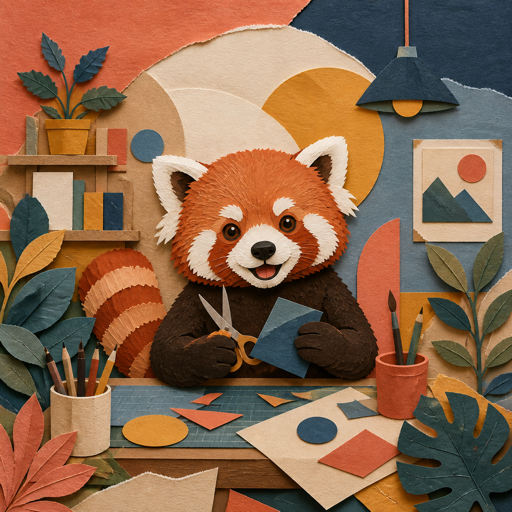
Collage
Layered shapes and found textures for playful composition.
Opens with Collage selected. Add your idea or source image after entering.
Compare another lookMatch the look to the task
Where Collage
can help.
- Culture campaigns
- Playful editorial compositions
When another look may fit better
- Layer edges and object scale can be inconsistent
- Generated textures are not separately editable source materials
Your idea still matters
What to describe
with Collage.
A Style guides the treatment of the image. Your prompt supplies the subject, setting, action, and the details that make it yours. Start with a sentence you can picture, then add what matters.
“A red panda botanist carrying a terracotta pot through a greenhouse, morning light.”
The character, prop, place, and light come from the prompt. Collage gives those things a visual direction.
Name the paper, photo, and texture layers
Describe a strong focal cutout and limited palette
Compare visual treatments
Which look supports
your idea?
Collage This page
Layered cutout shapes. Mixed textures and playful juxtaposition.
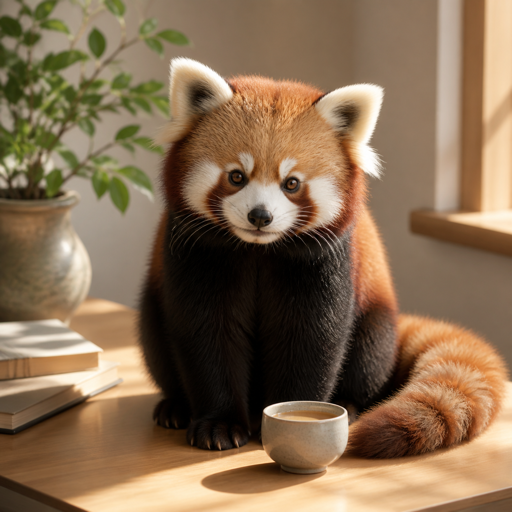
Photorealistic
Believable light and materials. Natural camera-like detail.
Explore PhotorealisticThese red panda examples share a subject, but pose, composition, and light also differ. Use them to compare visual direction, rather than as a controlled test of Style settings.
How do you want
to begin?
You can make a new image from an idea, or take an existing image in another direction. The first result is a starting point you can keep exploring.
Signed-in results are saved as Creations you can reopen and continue. Guest work stays in this browser. Keep a useful result, try a variation or another transformation, and download when you are ready to use it.
Prefer to describe your own look? Create without a Style →